How to curate your LinkedIn feed
Note: this article was originally published on my Substack newsletter.
Hey everyone,
Welcome to another update where I share insights and experiences about what I see happening on LinkedIn. My goal is to help you keep up with LinkedIn and understand how content evolves on the platform (specially if you use inkiro ai for it 😉).
Today, I want to talk about curating a good LinkedIn feed. Let’s dig into it. 😅
Why do some people hate LinkedIn but others love it?
This dichotomy has been sitting with me for a long time. Every time I talk to someone about LinkedIn I either get “Yeah, I love it. It works really well for us.” or “Man, everything is so cringe there, I don’t really use it.”.
I have to admit that LinkedIn’s algorithmic feed is probably one of the worst out there. It surfaces a lot of rubbish from people you’re not interested in, and a lot of posts are indeed very cringe.
So, how do you end up with a feed that actually provides you with valuable content?
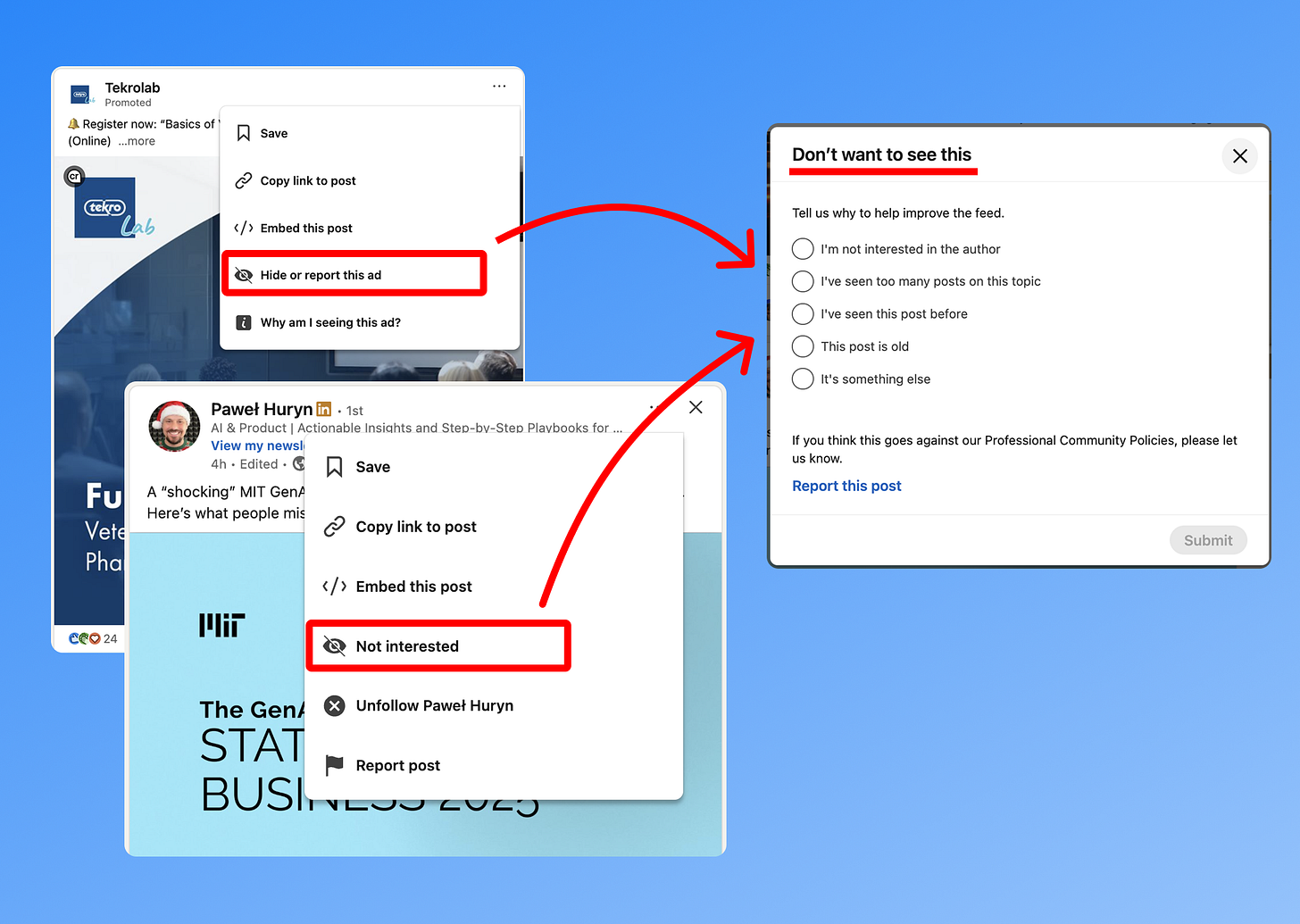
Yes, it involves some work but it’s only 2 clicks. I do this all the time for:
- Ads that make no sense: whenever I see irrelevant ads, I click the “…” button on the top right of a post, then “Hide or report this ad”, and mark the ad as “It’s annoying or not interesting”.
- Posts that I’m not interested in: I do the same for organic content I don’t want to have on my feed by clicking on “Not interested”. This can be because:
- “I’m not interested in the author” - you will never see posts from that person ever again.
- “I’ve seen too many posts on this topic” - reduces the content you see about that theme/news/event.
Doing this from time to time (I probably do it 1x a week maybe) helps keep a curated and clean feed of content that you find interesting, removing all the cringe and irrelevant stuff.
How to format text for a LinkedIn post
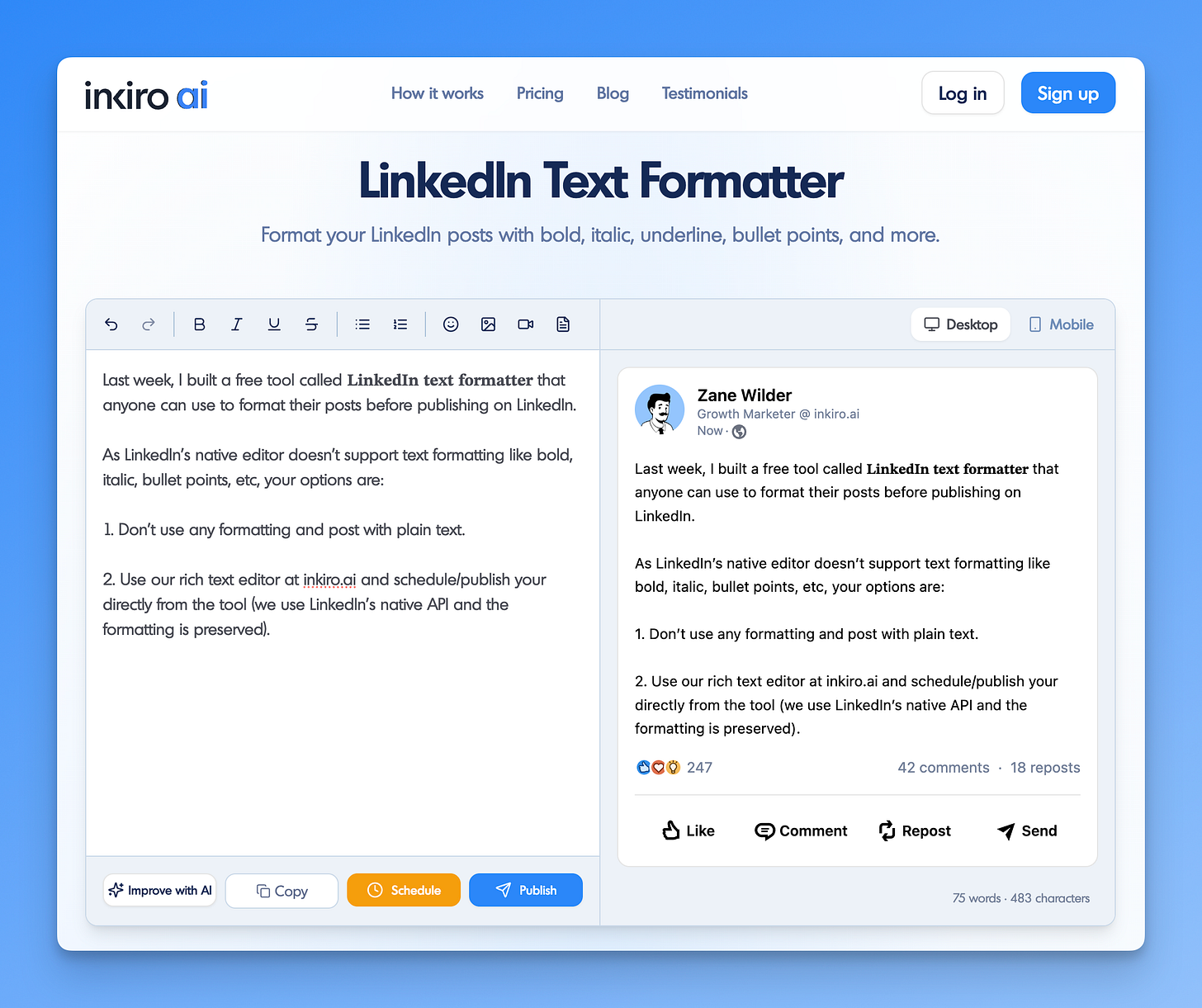
Last week, I built a free tool called LinkedIn text formatter that anyone can use to format their posts before publishing on LinkedIn.
As LinkedIn’s native editor doesn’t support text formatting like bold, italic, bullet points, etc, your options are:
- Don’t use any formatting at all and just post plain text.
- Use our rich text editor at inkiro.ai and schedule/publish your directly from the tool (we use LinkedIn’s native API and the formatting is preserved).
- Use our free LinkedIn text formatting tool, and then copy/paste the post onto LinkedIn’s editor (formatting is also preserved this way).
What I see working on LinkedIn
January 2025 was the best month I’ve ever had in terms of sales. This was all because of the pipeline I had built throughout December 2024. If you’re thinking about stop posting between Christmas and New Year’s, think again! 😉
The holiday period might mean less people working but not less people scrolling, reading, and connecting. Also, people love to say “Let’s discuss this in the new year” or “We want to do more of this in the new year” which is a perfect opportunity to put a call in both calendars right away!
PS: the only thing I wouldn’t do over Christmas is sending event invites or starting new conversations over DMs (if people don’t see them, chances are they’ll just get missed forever or deleted while cleaning up the inbox after the holidays).
Pro tip of the week
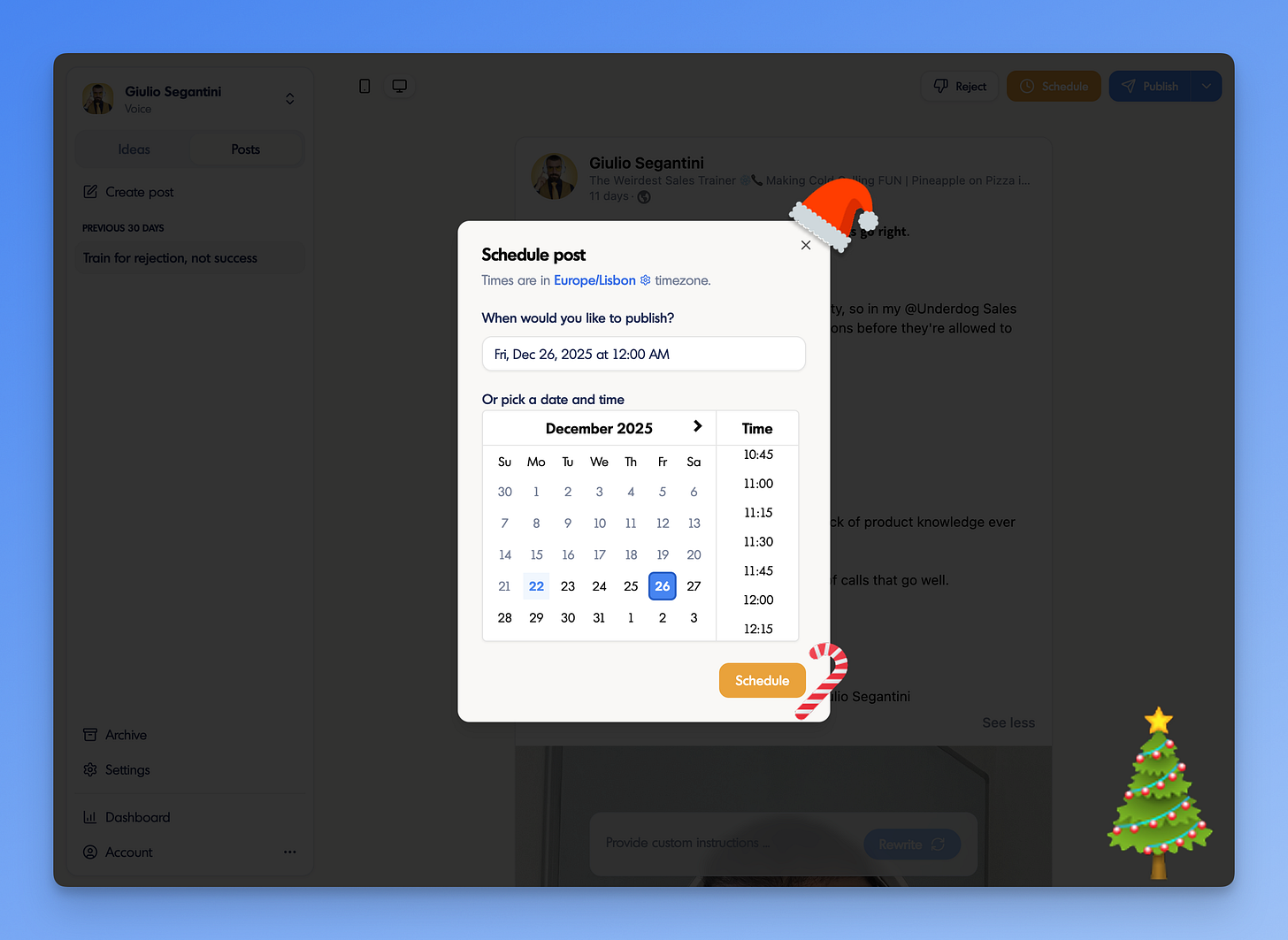
Schedule your content for the holidays period with inkiro.ai so you don’t have to worry about it. Yes, no one wants to spend their holidays thinking about what and when to post on LinkedIn!
Wrapping up
Alright, so now you know how to curate your feed and get the best out of LinkedIn. And you know how to apply bold, italic, and other text formatting to your posts.
Whether you’re posting on LinkedIn over the holidays or not, I wish you a merry Christmas with your family and a great 2026 ahead! I’ll see you in the new year with the next update.
Feel free to reply with any questions or feedback 🧑🎄
Merry christmas,
Francisco